

Why WordPress User Role Management is Critical for Site Security and Workflow
WordPress user role management is the system that controls who can access your site and what actions they can perform. Here's what you need to know:
Quick Answer: Managing WordPress User Roles
- Access the Users menu in your WordPress dashboard
- Assign appropriate roles based on responsibilities (Administrator, Editor, Author, Contributor, or Subscriber)
- Add new users via Users > Add New, selecting their role from the dropdown
- Change existing roles by editing a user's profile and selecting a new role
- Remove users safely by deleting them and reassigning their content to another user
- Customize roles using plugins like User Role Editor or PublishPress Capabilities for granular control
As your WordPress site grows, you'll need to bring in team members or contractors to help manage content, handle customer orders, or maintain technical aspects. Not everyone needs full administrative access—in fact, giving too much access is a security risk.
Think of it this way: you wouldn't hand over the keys to your entire house when someone just needs access to the front yard. WordPress user roles work the same way. They let you grant specific permissions to each person based on what they actually need to do.
The default WordPress system includes six user roles: Super Admin (multisite only), Administrator, Editor, Author, Contributor, and Subscriber. Each role inherits capabilities from the roles below it in the hierarchy. Understanding this structure is the foundation of secure, efficient site management.
I'm Randy Speckman, founder and CEO of Randy Speckman Design, where I've worked with more than 500 entrepreneurs to build and maintain their WordPress websites. Through years of implementing WordPress user role management strategies for clients, I've learned that proper role assignment is one of the simplest yet most powerful ways to protect your site while empowering your team. Let me show you exactly how to do it.
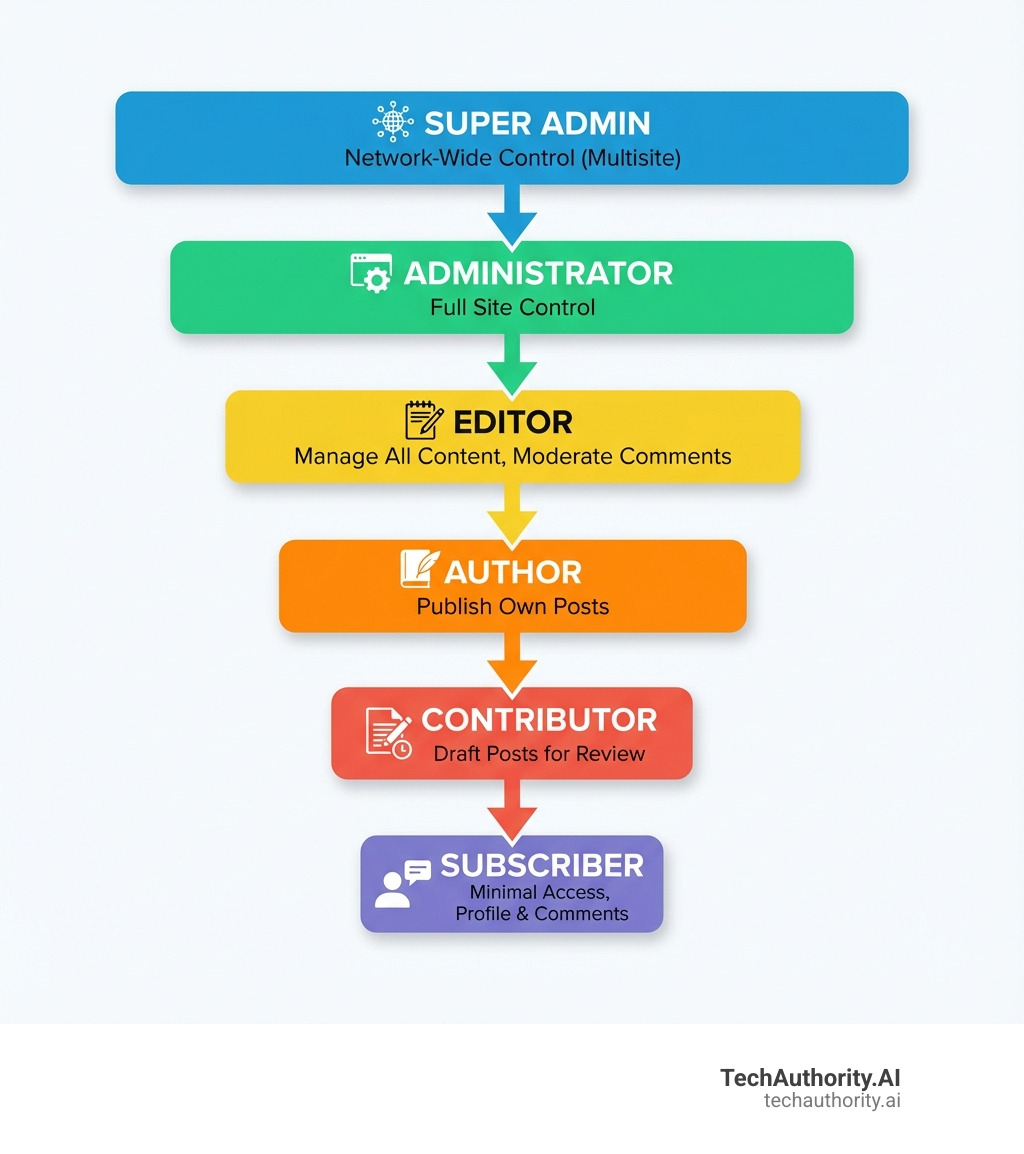
Key terms for WordPress user role management:
- Toolset plugins for WordPress development
- PHPStorm WordPress plugin development
- WordPress guide for developers
Understanding Default WordPress User Roles and Capabilities
Before diving into advanced WordPress user role management, it's crucial to understand roles and capabilities. A capability is a specific action a user can perform, like “publish_posts.” A role is a named collection of these capabilities. WordPress groups capabilities into roles to simplify management.
WordPress uses a robust Roles system to define user permissions. This system differs slightly between a single WordPress site and a WordPress Multisite network. A single site has five default roles, while a multisite network adds a more powerful one. Let's explore these default roles.
Super Admin
The Super Admin role is exclusive to WordPress Multisite networks and grants network-wide control. A Super Admin can manage all sites within the network.
Their capabilities include:
- Plugin management: Installing, activating, and deactivating plugins across the entire network.
- Theme management: Installing and enabling themes for use on individual sites within the network.
- User management: Adding and removing users from the network, and assigning them roles on any site.
- Site creation: Adding new sites to the network.
- Network settings: Configuring global settings for the entire multisite installation.
This powerful role is reserved for network administrators, allowing them to manage updates across the entire network.
Administrator
The Administrator is the most powerful role on a single WordPress site, with unrestricted permissions. Every WordPress site must have at least one Administrator.
Administrators have full site control, including:
- Content management: Creating, editing, publishing, and deleting any posts or pages, regardless of author.
- Managing other users: Adding new users, changing existing user roles, and deleting users.
- Theme and plugin installation: Installing, updating, and deleting themes and plugins.
- Settings configuration: Accessing and modifying all site settings, including general settings, permalinks, and more.
Essentially, an Administrator can do anything on a single WordPress site. This role should be assigned judiciously.
Editor
The Editor role focuses on content oversight, acting as a content manager to ensure quality.
Editors can:
- Publish and edit any posts: They can create, edit, publish, and delete posts by any user.
- Manage pages: They can manage all pages on the site.
- Moderating comments: Approving, editing, marking as spam, or deleting comments.
- Manage categories and tags: Creating, editing, and deleting content categories and tags.
They cannot change site settings, install plugins/themes, or manage users. They have full content control but no technical backend access.
Author
Authors are content creators focused on generating and managing their own work.
Authors have the ability to:
- Content creation: Write and edit their own posts.
- Publish and edit own posts: They can publish their articles and make changes to them after publication.
- Upload media files: Add images and other media to their posts.
Authors cannot edit others' posts or moderate comments. They are self-sufficient for their own content but don't manage the site's overall content flow.
Contributor
The Contributor role is for guest writers or new team members who need to draft content for editorial review.
Contributors can:
- Drafting content: Write and edit their own posts.
The key limitations for Contributors are:
- Cannot publish: Their posts remain in “pending review” until an Editor or Administrator publishes them.
- Cannot upload media: They cannot add images or files directly to their posts.
This role is ideal for user-submitted content where quality control is essential, acting as a content gatekeeper.
Subscriber
The Subscriber is the most limited role, often assigned to users who simply need to log in.
Subscribers can:
- Profile management: Access and update their own user profile.
- Read content: View all published content on your site.
- Leave comments: If commenting requires a login, Subscribers can leave comments.
Users who create their own account are typically assigned this role by default. They have no dashboard access beyond their profile and cannot manage content.
How to Manage Users and Their Roles in WordPress
Now that we understand the default roles, let's look at how we actually manage them within WordPress. Effective WordPress user role management is not just about assigning roles; it's about confidently adding, modifying, and even safely removing users while maintaining site integrity.
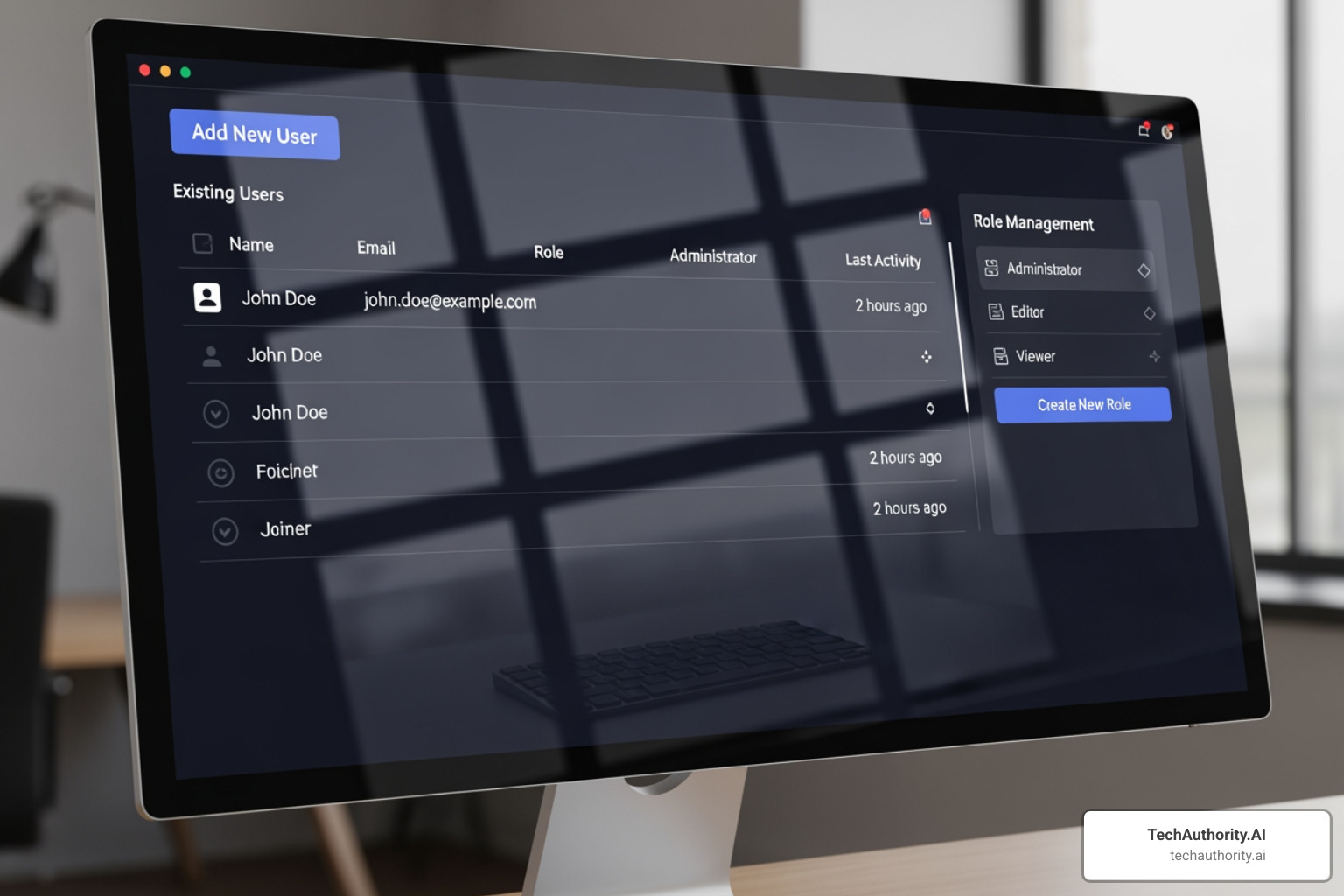
The WordPress dashboard provides a straightforward interface for user administration, primarily through the “Users” menu. Here, you'll find options for adding new users, editing existing ones, and performing bulk actions.
Adding, Editing, and Assigning Roles to Users
Managing users and their roles is a fundamental aspect of running a WordPress site. Here’s how we do it:
- Access the Users Menu: From your WordPress dashboard, steer to
Users > All Users. This screen lists all registered users on your site. - Adding a New User: To add a new person to your team, click the
Add Newbutton at the top of theAll Usersscreen. On theAdd New Userscreen, you'll enter their username, email, first name, last name, and a password. Crucially, there's a dropdown menu where you can select the appropriate role for the new user. - Changing a User's Role: To modify an existing user's role, simply hover over their name in the
All Userslist and clickEdit. Scroll down to theRoledropdown menu and select the new role. Remember to clickUpdate Userto save your changes. - Handling External Collaborators: For contractors, freelancers, consultants, or agencies, you'll assign them the role that grants the minimum necessary access for their tasks. For instance, a freelance writer might get the Contributor role.
Safely Removing Users and Reassigning Content
Sometimes, team members move on, or a project concludes. When this happens, safely remove users from your site. This process is more than just deleting an account; it involves ensuring that any content they created isn't lost.
- Initiate Deletion: From the
Users > All Usersscreen, hover over the username you wish to remove and clickDelete. - Reassign Content: WordPress is smart about this. Before permanently deleting the user, it will ask you what to do with their content (posts, pages, custom post types, etc.). You'll have two options:
- Delete all content: This will permanently remove everything the user published.
- Attribute all content to: This is the recommended option. You can select another existing user on your site (e.g., yourself or another Editor) to take ownership of all the deleted user's content. This ensures that valuable articles, pages, or images remain on your site.
- Confirm Deletion: After making your choice, click
Confirm Deletion.
This careful process of attributing content is vital for preserving site content and avoiding broken links or missing information. Regularly reviewing and updating user roles and access is a key part of maintaining a healthy and secure website, often covered in comprehensive WordPress Website Care Plans.
Advanced WordPress User Role Management: Customization and Expansion
While WordPress's default roles are a great starting point, they can sometimes feel like trying to fit a square peg in a round hole. As your site grows and your team's needs become more specialized, you might find yourself needing more granular control. This is where custom roles come into play, offering a significant upgrade to your WordPress user role management strategy.
Many popular plugins also introduce their own specialized roles. For instance, WooCommerce, the leading e-commerce platform for WordPress, adds “Customer” and “Shop Manager” roles. A “Customer” has basic access to view their orders, while a “Shop Manager” can manage products, orders, and reports without touching core site settings. Similarly, forum plugins like bbPress add roles like “Moderator,” “Participant,” and “Spectator,” and SEO plugins like Yoast SEO might also introduce roles for SEO specialists.
Why and When to Create a Custom User Role
The default roles are excellent for common scenarios, but they can be too rigid for complex operations. We find that creating custom user roles becomes essential when:
- Beyond default roles: The existing roles don't perfectly match a team member's responsibilities. For example, a “Marketing Assistant” might need to upload media and edit their own posts, but not publish them, a blend of Contributor and Author capabilities.
- Granular permissions: You need to grant very specific capabilities that aren't bundled into a default role. Perhaps a user needs to manage only a specific custom post type or access certain plugin settings without full Editor privileges.
- Specific team responsibilities: You have specialized team members (e.g., a “SEO Specialist,” “Product Manager,” or “Event Coordinator”) who need unique access to specific parts of your site.
- Enhancing security: By limiting access to precisely what's needed, you reduce the attack surface and potential for accidental errors. This aligns perfectly with the “Principle of Least Privilege,” which we'll discuss later.
- Improving workflow: Custom roles streamline operations by ensuring each team member sees only the tools and content relevant to their job, reducing clutter and potential confusion.
For WordPress Small Businesses Complete Guide, tailoring roles can significantly boost efficiency and security.
Method 1: Using Plugins for Easy WordPress User Role Management
For most site owners, the simplest and most recommended way to implement advanced WordPress user role management is by using plugins. These tools provide a user-friendly interface, often with checkboxes, allowing you to create and modify roles without writing a single line of code.
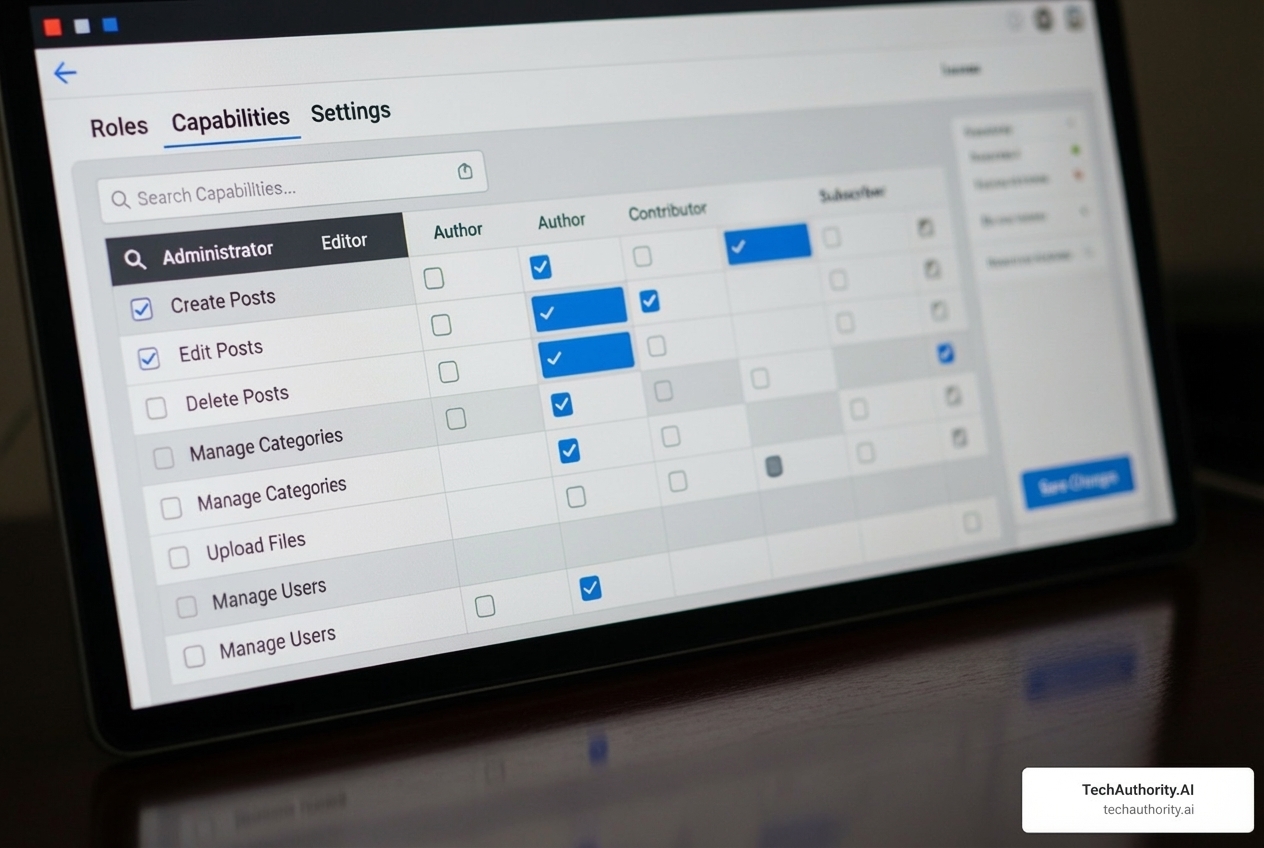
Benefits of using plugins include:
- User-friendly interface: No need to touch code; manage everything from the dashboard.
- No-code solution: Accessible to users of all technical levels.
- Quick customization: Easily toggle capabilities on or off for any role.
There are several excellent plugins available, which we'll detail in the next section. These plugins allow you to:
- Create new custom roles from scratch.
- Copy existing roles and then modify their capabilities.
- Add or remove individual capabilities for any role, default or custom.
Method 2: Creating Custom Roles with Code for Developers
For those with a developer background or who prefer a code-based approach, WordPress provides functions to manage roles and capabilities directly. This method offers ultimate flexibility but requires comfort with PHP and a good understanding of WordPress's role and capability system.
You'll typically add this code to your theme's functions.php file, or even better, within a custom plugin. We always recommend using a child theme for any code modifications to avoid losing your changes when the parent theme updates.
The primary functions you'll use are:
add_role(): This function allows you to register a new custom role. You'll specify the role's ID (a unique identifier) and its display name, along with an array of capabilities it should have.add_cap(): This function lets you add a specific capability to an existing role. You can use it to grant new permissions to any default or custom role.remove_cap(): Conversely, this function removes a specific capability from a role.
For more in-depth guidance on this, our WordPress Guide for Developers provides valuable resources. While powerful, coding custom roles means you're responsible for maintaining the code and ensuring compatibility with future WordPress updates.
Top Plugins for Customizing User Roles
The WordPress plugin ecosystem offers a wealth of tools to extend functionality, and WordPress user role management is no exception. These plugins simplify the process of customizing roles, enhancing security, and improving the ease of use for site administrators. When looking for the Best WordPress Development Tools, user role editors often make the list.
Here are some of the most popular and highly-rated plugins that facilitate advanced user role management:
User Role Editor
The User Role Editor plugin is arguably the most popular choice for advanced WordPress user role management, boasting over 600,000 active downloads and a 4.5-star rating. It's a powerhouse that puts control of all WordPress user functions and permissions into an intuitive, checkbox-based interface.
Key features include:
- Checkbox interface: Easily toggle capabilities on or off for any role. Want to let Contributors upload images? Just check the box.
- Multisite support: It works seamlessly with multisite installations, allowing Super Admins to manage roles across their network.
- Create/Delete Roles: You can create new roles from scratch or delete existing custom roles.
- Free vs Pro version: The User Role Editor plugin offers a free version with robust features, and a pro version (starting at $29/year) that adds extra modules like multisite support, content restrictions, and export/import functionality for roles.
This plugin is a fantastic option for anyone needing fine-grained control over user permissions without touching code.
Members
The Members plugin is designed to take user roles beyond native WordPress functionality, especially useful for membership sites or content restriction. With over 200,000 active downloads and a 4.5-star rating, it has a proven track record.
Highlights of the Members plugin include:
- Membership sites: It's particularly well-suited for sites where users register to access exclusive content, often integrating seamlessly with other membership plugins like MemberPress.
- Content restriction: It provides tools to restrict access to posts, pages, and other content based on user roles.
- Role creation and editing: Easily create, manage, and change user roles across your website.
- User Management: The Members – Membership & User Role Editor Plugin offers a comprehensive suite of tools for managing your site's users and their capabilities.
If you're running a membership-driven site or need robust content restriction features, Members is an excellent choice.
PublishPress Capabilities
PublishPress Capabilities is another powerful and user-friendly plugin for WordPress user role management. It offers an intuitive interface that makes creating and deleting user roles, as well as customizing permissions, a breeze.
Notable features include:
- Intuitive interface: Its design is familiar to WordPress users, mimicking how you manage posts and pages.
- Copying roles: You can easily create a new custom role by copying an existing one, saving you time and ensuring consistency.
- Backup and restore roles: Protect your custom role configurations by backing them up and restoring them if needed.
- Individual user permissions: Beyond just roles, PublishPress Capabilities allows you to customize permissions for individual users, offering even more granular control.
This plugin is a strong contender for anyone seeking detailed control over user and role permissions, with a focus on ease of use and advanced features like role migration.
Best Practices for Secure and Efficient Role Management
Effective WordPress user role management involves applying strategic principles for a secure, efficient website. Neglecting them can cause security vulnerabilities, data loss, or workflow issues.
Our focus at TechAuthority.AI is always on site integrity and security audits, ensuring your digital assets are protected.
Implementing the Principle of Least Privilege
This is the most crucial best practice in WordPress user role management. The Principle of Least Privilege means granting only the minimum permissions necessary for a user to perform their task.
What this means for your WordPress site:
- Assigning minimal access: Never give a user more access than they absolutely need. An Author who only writes their own posts should not have Editor capabilities.
- Limiting Administrator roles: The Administrator role is the most powerful. Limit this access to one or two essential individuals, like the site owner. Granting excessive admin access is a major security risk.
- Reducing security risks: By restricting privileges, you reduce the potential for security breaches from malicious intent or human error.
Adhering to this principle is also a cornerstone of WordPress SEO Best Practices, as it helps prevent unintended changes that could harm search rankings.
Regularly Auditing and Testing User Roles
Your team, plugins, and site evolve, so regular audits are essential.
- Periodic reviews: Regularly review your user list and their assigned roles. Ask if the access level is still appropriate.
- Deleting unused accounts: Promptly delete or downgrade accounts for former contractors or team members. Unused accounts are potential security vulnerabilities.
- Testing permissions: Test your roles to ensure they function as intended. The User Switching plugin is excellent for this, allowing an admin to impersonate other users to check their access.
- Staging environment: Always test role changes or new plugins on a staging environment first, never on your live site.
Keeping Your Site Secure
User role management is one part of a larger security picture. To keep your site secure:
- Regular backups: Maintain regular backups of your entire site (files and database) as your ultimate safety net.
- Activity logs: Use an activity log plugin to track all user actions, helping you monitor for suspicious activity and troubleshoot issues.
- Managed WordPress Hosting with Malware Scanning: Choose a hosting provider with robust security features like malware scanning and firewalls.
- Two-factor authentication (2FA): Enforce 2FA for all users, especially those with higher-level roles, to add a critical layer of login security.
Frequently Asked Questions about WordPress User Role Management
Here are answers to common questions about WordPress user role management.
What is the difference between a role and a capability?
A role is a named collection of permissions, like “Editor.” A capability is a single permission, such as “publish_posts” (the ability to publish posts). In short, roles are made up of capabilities, bundling them for easier management.
Can I modify the capabilities of a default WordPress role?
Yes, but with caution. You can use a plugin like User Role Editor or code functions (add_cap(), remove_cap()). However, changing a default role affects all users with that role. It's safer to create a new custom role, perhaps by copying a default one, and then modifying it. This keeps the original default roles intact.
What happens to a user's content if I delete their account?
When you delete a user, WordPress presents two options for their content:
- Delete all content: This permanently removes everything the user created. Use this with extreme caution.
- Attribute all content to: This is the recommended option. You can reassign the user's content to another existing user (like an Administrator or Editor). This ensures valuable content remains on your site.
To preserve content, you must choose to reassign it before confirming the deletion.
Conclusion
Mastering WordPress user role management is a powerful tool in your arsenal for building and maintaining a secure, efficient, and collaborative website. By understanding the default roles, knowing when and how to create custom ones, and implementing best practices, you can effectively delegate tasks, improve your site's security posture, and streamline your workflow.
At TechAuthority.AI, we believe in empowering entrepreneurs and agencies with actionable, expert-driven content. Proper user role management is a prime example of how strategic delegation can lead to continuous improvement and growth for your online business. Keep exploring, keep learning, and keep building!
For more insights into optimizing your WordPress site, explore our resources on WordPress Development.